Business Registry Data
A modular foundation for business data Leapware Business Essentials isn't a single-purpose lookup tool, it's a modular platform where you subscribe to the data modules your business actually needs, all inside the same HubSpot integration:
- Business Registry Domestic, official company data for a single country: the KvK register for the Netherlands, and (in future) the CBE register for Belgium.
- Additional modules for broader geographic coverage and other data types are planned as the platform grows.
Today, only Business Registry Domestic (Netherlands) is live. The rest of this guide covers that module. Future modules will get their own documentation as they become available.
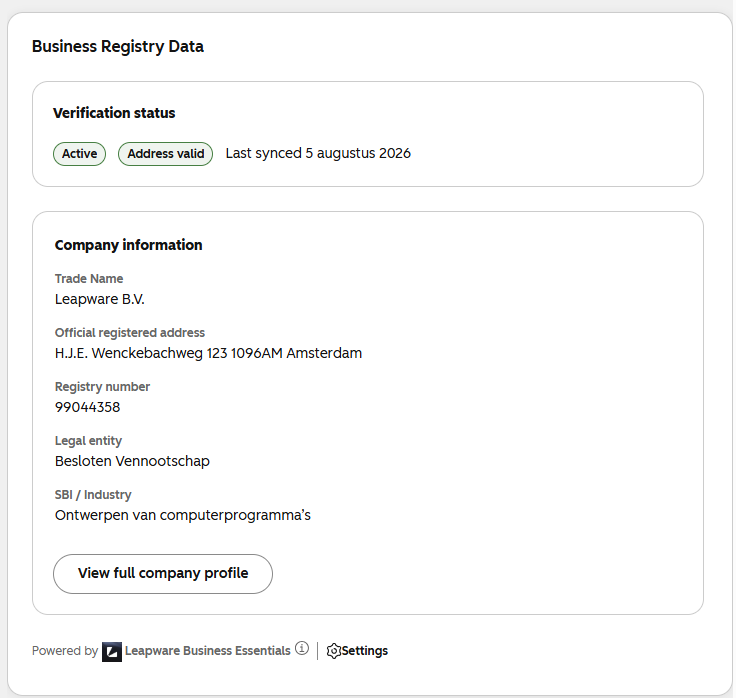
Searching
Searching and matching a company - 1/2
The card searches the KvK register directly from the company record, no need to leave HubSpot.
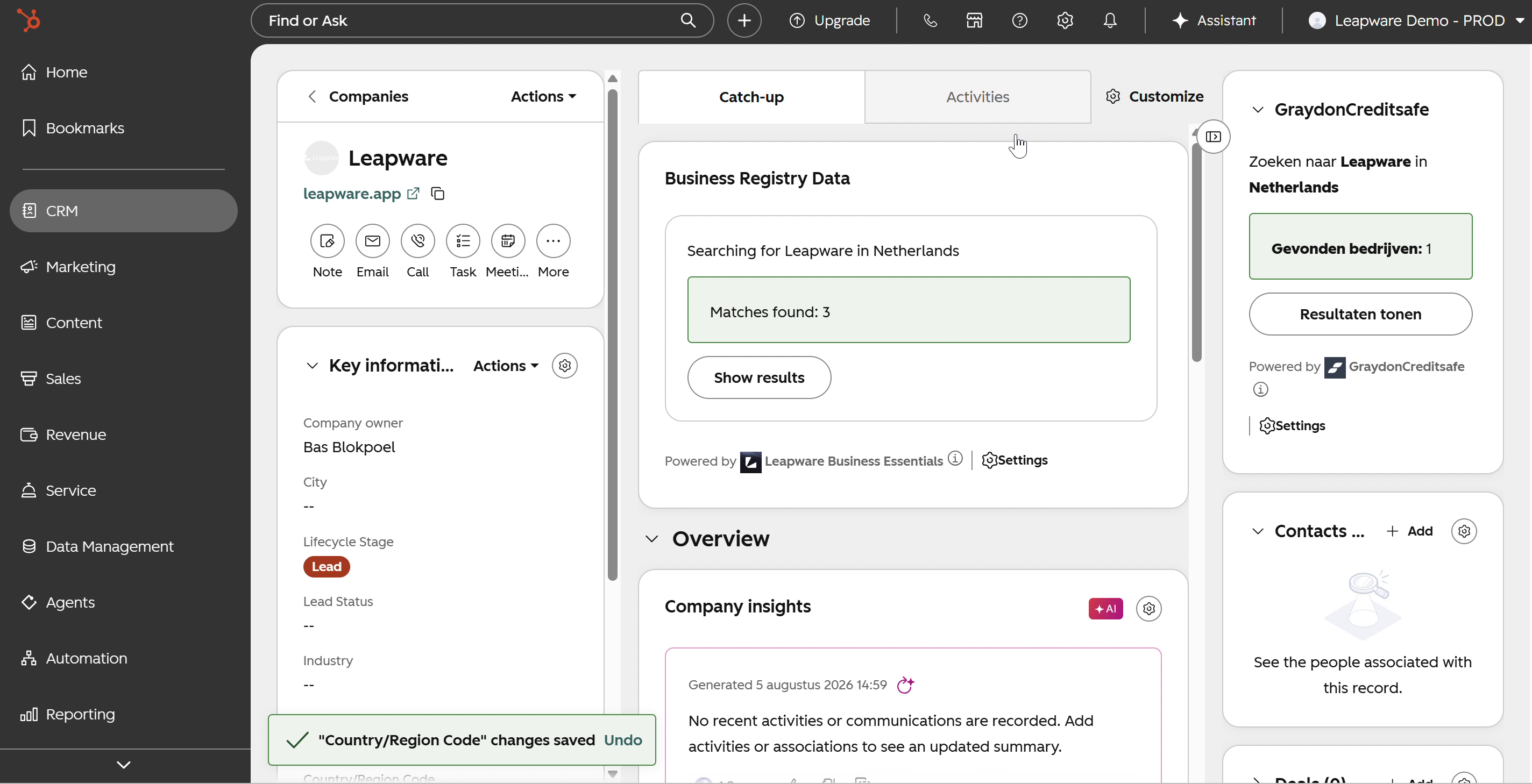
Searching
Searching and matching a company - 2/2
If a company record doesn't have a country set, the card shows: "We need a country to search for this company. Add a country to this company record to enable search." This uses HubSpot's standard Country/Region Code property (for example, nl), not an LBE-specific field.
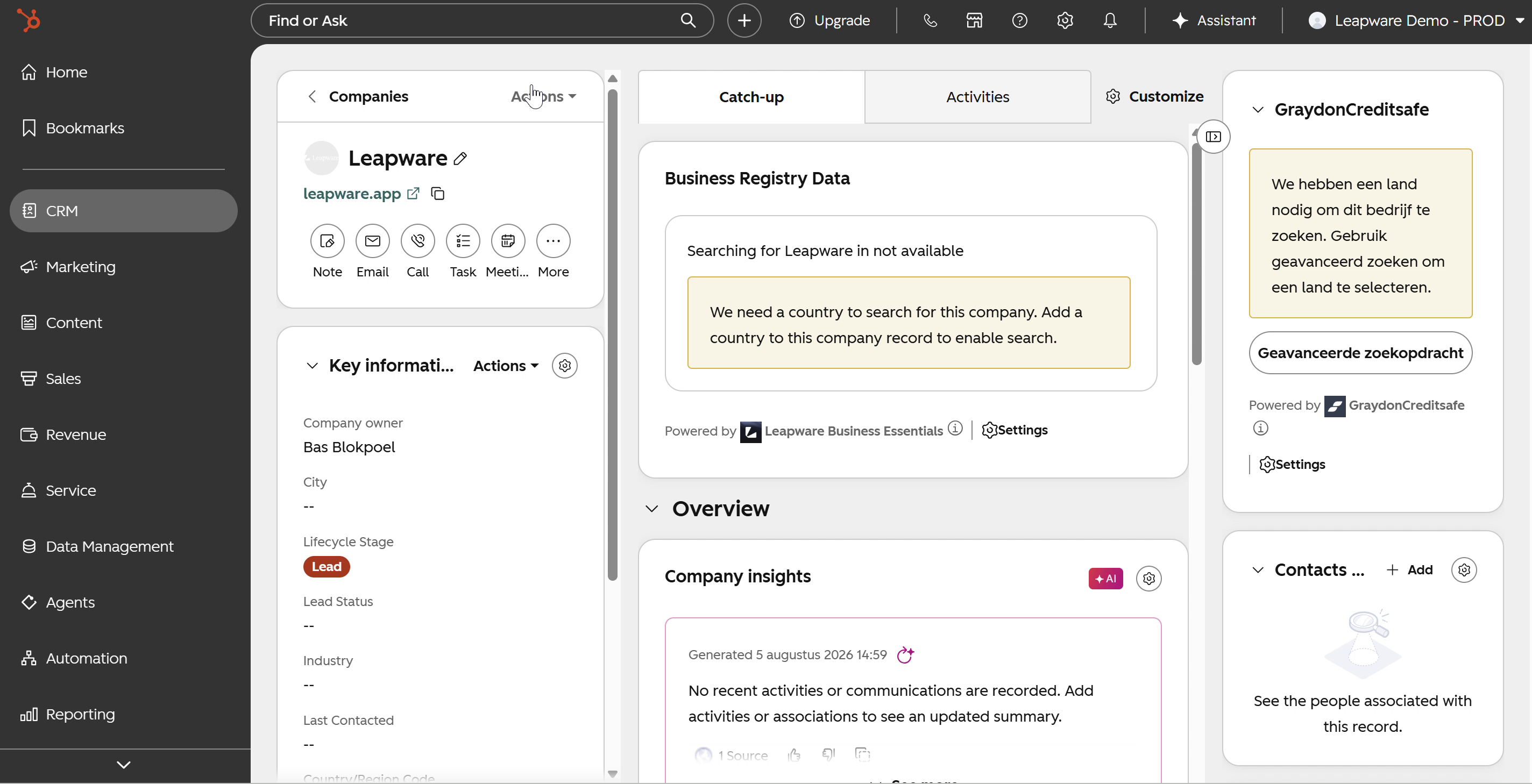
Searching
Setting the country code
The country code can be set by looking up the propery Country Region Code in the View All Properties list in HubSpot.
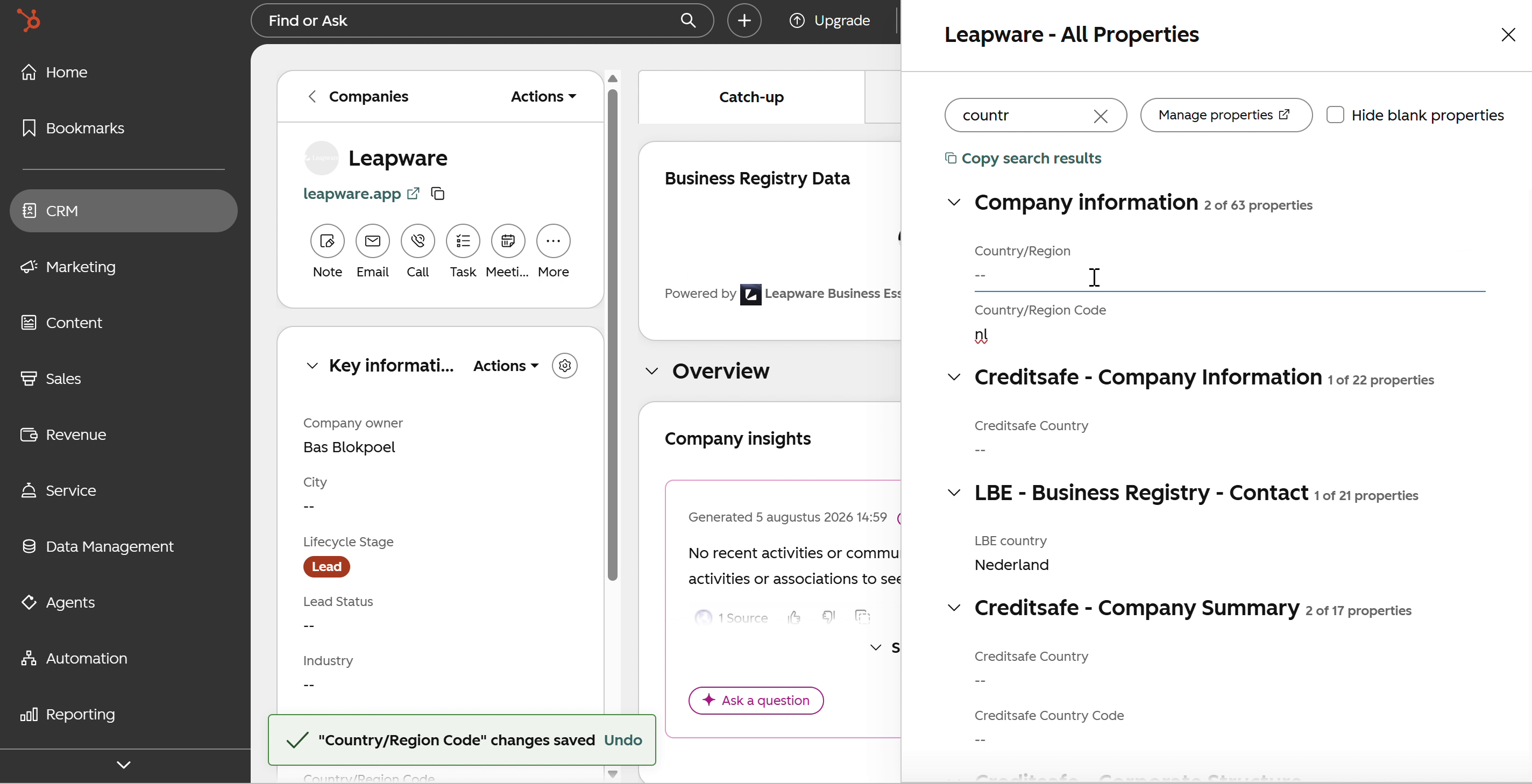
Searching
Review the matches
When multiple matches are found press Show Results to view the Companies that are a match for the given Company.
How the search actually works: Business Essentials sends the company's name, plus any address details already on the record, like postal code and house number, straight to the KvK register's own search service, the same one behind kvk.nl. The matching happens on KvK's side, not inside Business Essentials. A name alone is often enough to return multiple real companies with similar names, which is why more than one result is normal, not a sign anything went wrong.
Searching
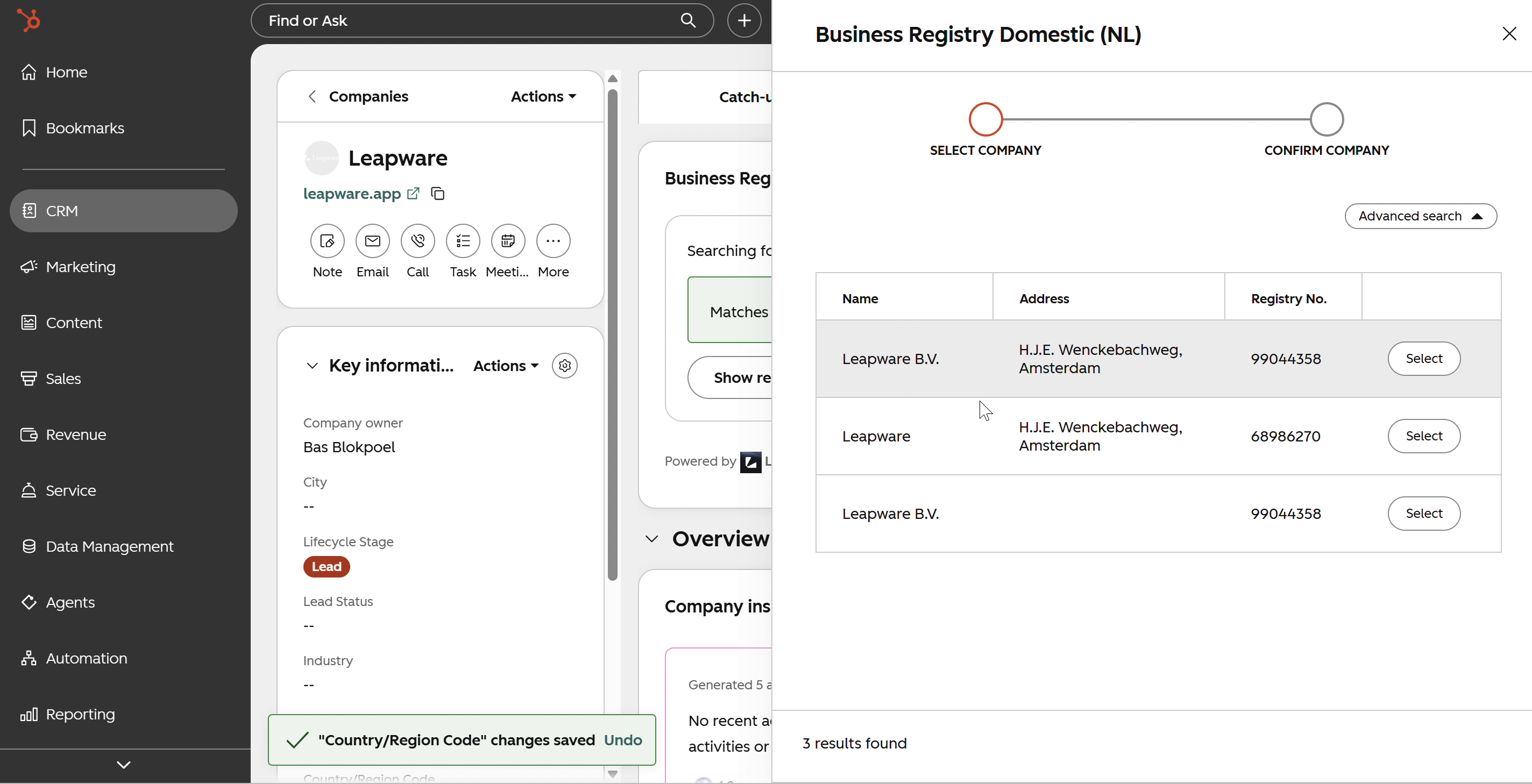
Make a selection
This opens the Business Registry Domestic (NL) wizard, a two-step flow: Select Company → Confirm Company. Results show Name, Address, and Registry No. for each candidate, with a Select button. An Advanced search option is available if the default results don't include the right match.
Searching
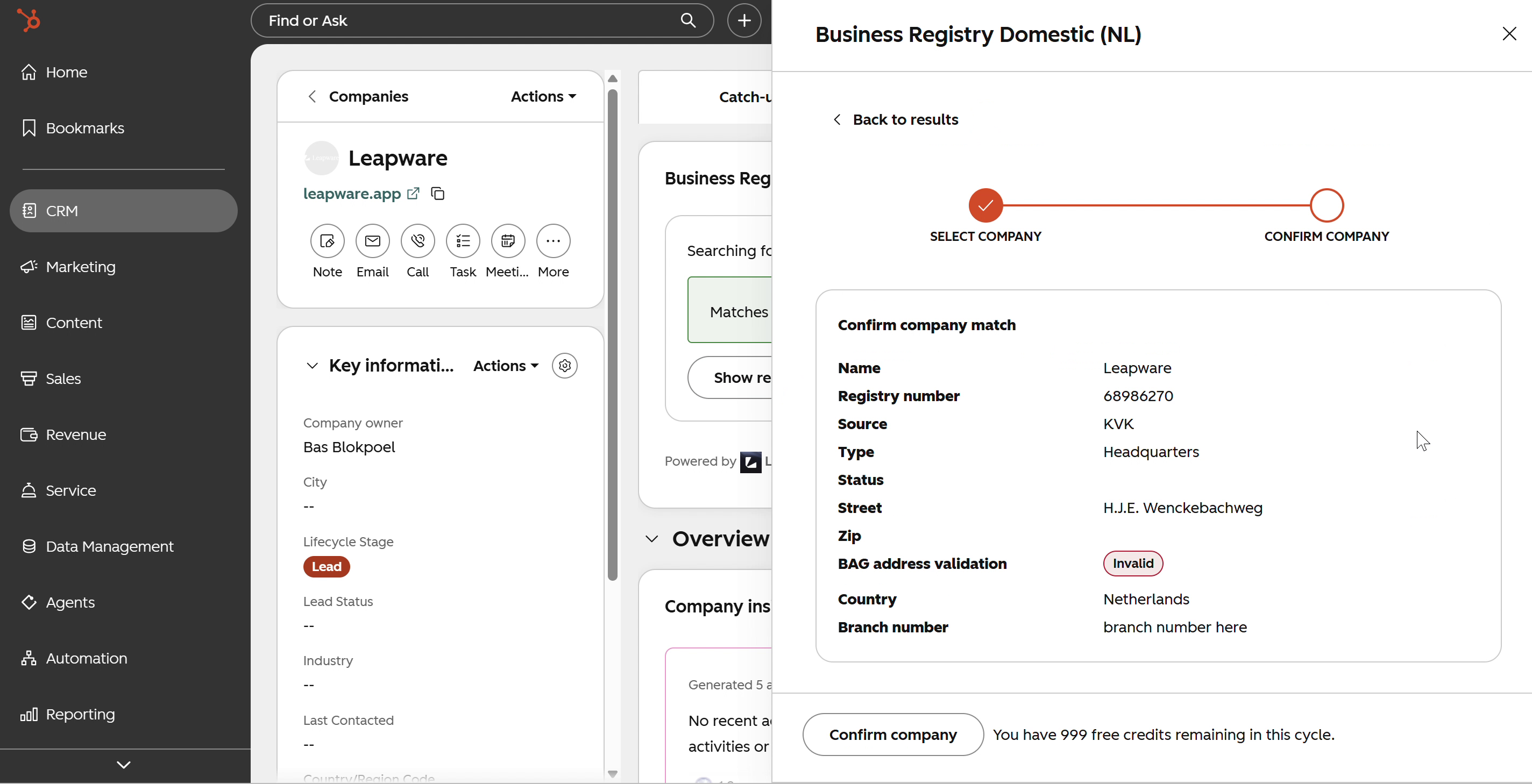
Verify the company preview
Before anything is written to the record, you get a full preview: Name, Registry number, Source (KvK), Type (e.g. Headquarters), Status, Street, Zip, BAG address validation (Valid/Invalid), Country, and Branch number. Your remaining credit balance for the current cycle is shown right next to the Confirm company button, so you know the cost before you commit.
If the match isn't right, go Back to results and pick a different candidate instead of confirming.
Searching
Confirm the match
Before anything is written to the record, you get a full preview: Name, Registry number, Source (KvK), Type (e.g. Headquarters), Status, Street, Zip, BAG address validation (Valid/Invalid), Country, and Branch number. Your remaining credit balance for the current cycle is shown right next to the Confirm company button, so you know the cost before you commit.
If the match isn't right, go Back to results and pick a different candidate instead of confirming.
Custom properties
Four Property groups
Business Essentials creates and maintains custom properties for the Company Object. These are divided over 4 groups:
LBE - Business Registry - Identification
ID fields, including lbe_registration_number (kvk nummer)
LBE - Business Registry - Core Data
Data on start (end) ate of the business, SBI Codes, employee count
LBE - Business Registry - Contact
All address related data
LBE - Business Registry - Provenance
Properties related to the source of the data (for NL: KvK) and when a report was requested.
For a complete list of the custom properties check our blog post: https://leapware.app/resource-center/the-leapware-business-essentials-data-structure-in-hubspot
Custom properties can be used in building segments, creating workflows and other HubSpot functionality.